How to Delete Pages From a PDF: Blank, Duplicate, or Unwanted
A practical guide to removing blank, duplicate, or unwanted pages from any PDF, with step-by-step instructions for scanned documents, confidential page removal, and post-deletion checks.
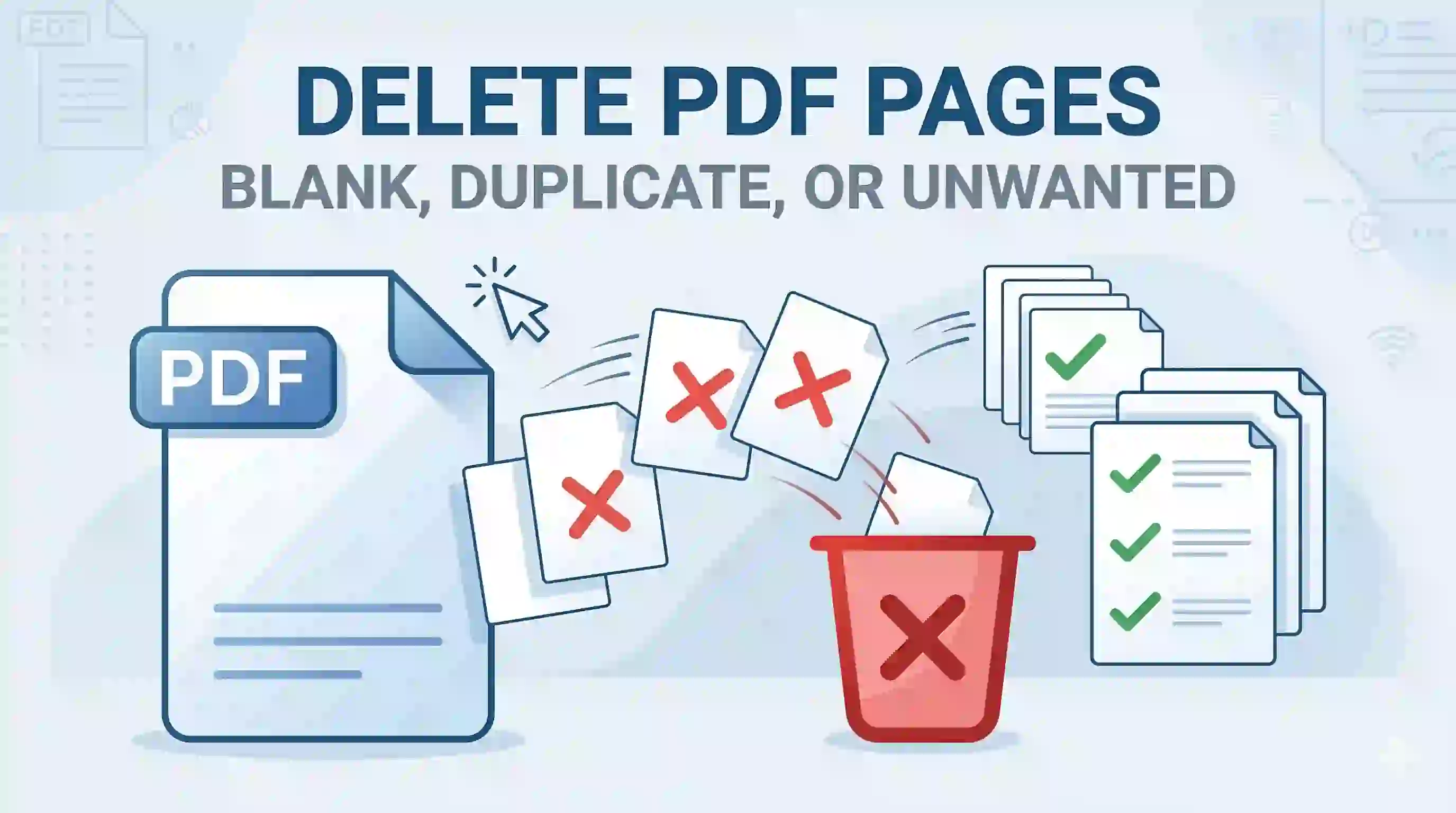
Not every page in a PDF belongs there. Sometimes you receive a 40-page scanned document when only 35 of those pages contain actual content. Other times you need to share a report but want to strip out the page with internal pricing before it reaches a client. And occasionally you end up with duplicate invoice pages or leftover draft sections that should have been removed weeks ago.
In all of these cases, the solution is not to edit the text or rebuild the document from scratch. The solution is simply to delete the pages you do not need, export a clean file, and move on.
This guide covers exactly how to do that. It walks through the difference between deleting pages and other PDF operations, explains when deletion is the right approach, and shows you step by step how to remove blank, duplicate, or unwanted pages from any PDF. Where relevant, it also addresses privacy considerations and how to handle scanned documents.
Table of Contents
- What deleting pages from a PDF actually means
- When deleting pages is the right solution
- How to delete pages from a PDF step by step
- How to delete blank pages from a PDF
- How to remove multiple pages at once
- How to delete pages from scanned PDFs
- Removing confidential or sensitive pages safely
- Delete pages vs split PDF vs redact PDF
- What to check after deleting pages
- Common examples
What deleting pages from a PDF actually means
Before diving into the process, it helps to understand what "deleting pages" means in precise terms, because there are several PDF operations that sound similar but do very different things.
Deleting a page vs editing text. When you delete a page, you remove the entire page from the document. The page, including every element on it (text, images, headers, footers), is gone from the output file. Editing text, on the other hand, modifies what is written on a page without removing the page itself. If you need to fix a typo or update a date, that is editing. If you need to remove an entire page of outdated terms, that is deletion.
Deleting pages vs redacting information. Redaction permanently removes specific content within a page, such as a name, account number, or confidential paragraph, while keeping the page itself intact. The key difference is scope: deletion removes the whole page; redaction removes selected content from a page. It is also worth noting that redaction, when done properly, destroys the underlying data so it cannot be recovered. Simply drawing a black box over text in a PDF editor is not redaction. That black box can often be removed by anyone with a basic PDF tool.
Deleting pages vs extracting pages. Extraction is the inverse of deletion. When you extract, you select the pages you want to keep, and those pages are pulled into a new file. When you delete, you select the pages you want to remove, and they are dropped from the original. The end result can be identical, but the mental model is reversed: one starts from "keep everything and subtract," while the other starts from "nothing and adds." If you need to pull specific pages out into a separate document, you may find our guide on splitting PDFs by range, specific pages, or file size more useful.
When deleting pages is the right solution
Deleting pages is not always the best approach, but for a specific set of situations, it is clearly the right one. Here are the most common scenarios.
Blank scan pages. This is one of the most frequent reasons people need to delete pages from a PDF. When you scan a stack of documents using a duplex (two-sided) scanner, the machine captures both sides of every sheet, even if one side is blank. The result is often a PDF littered with empty pages between the ones that matter. This happens because most duplex scanners do not distinguish between a genuinely blank back side and a page with actual content. Hole punch marks, faint smudges, or dust particles can sometimes fool the scanner's own blank-page detection feature, causing it to include those empty pages anyway.
Duplicate pages. Duplicates creep in when the same document is scanned twice, when multiple drafts get combined, or when someone merges files without checking for overlap. A set of monthly invoices, for instance, might end up with two copies of the January statement if the merge was done carelessly.
Wrong appendix or attachment. You receive a 60-page contract package but realize the wrong pricing schedule was included as an appendix. Instead of regenerating the entire document, you delete the incorrect pages and, if needed, merge the correct ones back in.
Outdated pricing, old terms, or draft pages. Internal documents often accumulate version debris over time. A proposal might still include last quarter's pricing table, or a policy document might carry leftover draft sections that were never finalized. Deleting those pages produces a clean, current file.
Personal or confidential pages before sharing. Before sending a document externally, you may need to remove pages that contain internal notes, personal identification details, salary figures, or other sensitive information. In these situations, deleting the page entirely is a more reliable approach than trying to cover or hide specific content within the page.
How to delete pages from a PDF step by step
The actual process is straightforward with a browser-based tool. Here is what it looks like in practice:
1. Upload your PDF. Drag and drop the file or browse to select it from your device. Browser-based tools like ToolsApex process the file directly in your browser, so the document is not uploaded to a remote server.
2. Preview the page thumbnails. Once the file loads, you see a visual grid of every page in the document. This is where you identify which pages need to go. Take a moment to scroll through and confirm what you see.
3. Select the pages you want to delete. Click on individual page thumbnails to mark them for deletion. Most tools also support multi-select: hold Shift to select a range of consecutive pages, or use a range input field to type something like "3-7, 12, 15" to select specific pages and ranges at once.
4. Use "Find Blank Pages" if available. Some tools, including the ToolsApex Delete PDF Pages tool, offer an automatic blank page detection feature. This scans the document and highlights pages that appear to be empty, saving you from manually scrolling through a long file to find them one by one.
5. Review and export. Before finalizing, double-check your selection. Look at the counter showing how many pages will remain after deletion. Once you are satisfied, click the delete button. The tool generates a new PDF without the selected pages, ready for download.
How to delete blank pages from a PDF
Blank pages are the most common nuisance in scanned documents, and they deserve specific attention.
Why scanners create blank pages. As mentioned earlier, duplex scanners capture both sides of every sheet. If the back side is blank, the scanner still includes it. The scanner's built-in blank-page detection relies on thresholds: it measures the percentage of dark pixels on a page or checks the page's file size. If that threshold is set incorrectly, or if the page has minor marks (hole punches, stray ink, dust specks), the scanner will treat it as a non-blank page and include it in the output.
How to spot blank pages quickly. In a tool with thumbnail previews, blank pages are usually easy to identify visually. They appear as white or near-white rectangles in the grid. For longer documents (50+ pages), using an automatic "Find Blank Pages" feature is far more efficient than scrolling through every thumbnail.
Batch-cleaning logic. If you regularly scan documents and end up with blank pages, consider establishing a workflow: scan, open the file in a page-deletion tool, run blank detection, review the results, and export. This takes less than a minute for most documents and produces consistently clean output.
Final review before export. Always scroll through the cleaned file after deleting blank pages. Occasionally, a page that looks blank at thumbnail size may contain a small but important footer, page number, or notation that you want to keep.
How to remove multiple pages at once
Not all deletion jobs involve a single page. In many real-world scenarios, you need to remove several pages, and doing it one at a time would be tedious.
Single-page deletion is the simplest case. Click the page thumbnail, confirm, and export.
Multi-select deletion lets you click multiple non-consecutive pages. For example, you might select pages 3, 7, and 14 individually by clicking each one.
Page-range deletion is for consecutive blocks. Instead of clicking each page, you type a range like "5-12" into the range input field, and all eight pages are selected at once.
Shift-select workflows combine the best of both. Click page 5, then hold Shift and click page 12 to select the entire range from 5 through 12 in one gesture. This is especially useful when working with long documents where scrolling between distant pages is impractical.
The best approach depends on how many pages you need to remove and whether they are grouped together. For scattered deletions, multi-select is ideal. For large continuous blocks, range input or Shift-select is faster.
How to delete pages from scanned PDFs
Scanned PDFs present a unique challenge because every page is essentially a photograph rather than structured digital text. This has a few practical implications for page deletion.
Why scanned PDFs need visual preview. In a digitally created PDF, you can sometimes identify pages by their text content or headings. In a scanned PDF, that is not possible because the content is an image. You need to see the actual page to know what is on it, which makes thumbnail preview essential.
What makes scanned page cleanup different. Scanned pages tend to have uniform formatting, similar margins, and similar visual weight. This makes it harder to distinguish between two pages that look nearly identical at thumbnail size. Zoom in if your tool supports it, or rely on page numbers printed on the original document to confirm your selection.
Why thumbnail review matters more here. With scanned documents, there is no "undo" in the sense that you cannot recover a page's content if you accidentally delete the wrong one (unless you still have the original file). Take an extra moment to verify your selection before exporting.
Removing confidential or sensitive pages safely
One of the most important use cases for page deletion is preparing documents for external sharing. Before sending a file to a client, a vendor, a regulatory body, or a colleague, you may need to remove pages that contain information the recipient should not see.
Share only the pages someone should see. A procurement package might contain 40 pages, but the subcontractor only needs the scope of work (pages 14 through 22). Instead of sending the entire file and hoping they ignore the rest, delete the pages they should not have access to and send a clean, focused document.
Why deleting a page is different from hiding content. If you need to remove an entire page of sensitive information, deletion is the correct approach. If you need to remove specific words, numbers, or paragraphs within a page while keeping the rest of the page visible, that requires redaction, not deletion. Do not confuse the two. Drawing a black rectangle over text in a basic PDF editor does not count as redaction. The underlying text can often be copied, searched, or extracted by anyone with standard tools.
Final safety checks before sending the new PDF. After deleting pages, open the exported file and scroll through it completely. Confirm that the sensitive pages are genuinely gone and that the remaining pages are in the correct order. Rename the file clearly (for example, "contract-scope-only.pdf" rather than "final-v3.pdf") so the recipient knows what they are looking at.
Delete pages vs split PDF vs redact PDF
These three operations are related but serve different purposes. Understanding the distinction helps you choose the right tool.
Delete removes selected pages from a PDF entirely. The output is a single file with fewer pages than the original. If you need to remove pages 5 and 6 from a 20-page document, you end up with one 18-page file.
Split divides a PDF into multiple separate files. If you split a 20-page document at page 10, you get two files: one with pages 1 through 10, and another with pages 11 through 20. Splitting is useful when you want to break a long document into sections for distribution. Our Split PDF tool supports range-based, page-specific, and file-size-based splitting.
Redact permanently obscures or removes specific content within a page, such as a Social Security number, an account balance, or a person's name. The page itself remains in the document, but the sensitive content is destroyed. Redaction is governed by strict requirements under the ISO 32000 specification because improperly redacted content can be recovered.
If your goal is to remove whole pages from a document, deletion is the right choice. If your goal is to break a document into parts, use splitting. If your goal is to hide specific content on a page while keeping the page itself, use redaction.
What to check after deleting pages
After exporting your cleaned PDF, run through this quick checklist before sharing or archiving the file.
Page order. Confirm that the remaining pages are in the correct sequence. Occasionally, deleting pages from the middle of a document can make it feel like something is missing if you are not careful.
Missing required pages. Make sure you did not accidentally delete a page you needed. This is particularly important with scanned documents or long files where pages look similar at thumbnail size.
Attachment completeness. If the PDF includes annexures, appendices, or exhibits, verify that all required attachments are still present after the cleanup.
File naming. Rename the exported file to reflect its new state. "Report-final-cleaned.pdf" is far more useful than "Report (1).pdf" when you revisit the file three weeks later.
Version control. Keep the original file in case you need to go back. Never overwrite your only copy of the source document. Store it in a clearly labeled folder so you can return to it if needed.
Common examples
Remove blank pages from a 40-page scan. You scan a 20-sheet document using a duplex scanner. The output is 40 pages, but approximately half are blank. Open the file, run automatic blank page detection, review the highlighted pages, and export. Result: a clean 20-page document.
Delete a confidential page from a report. Your quarterly report includes a page with internal salary benchmarks on page 9. Before sharing it with the board, you delete page 9 and export a new file containing only the information the board should see.
Remove duplicate invoice pages. You merged twelve monthly invoices into one PDF, but the March invoice appears twice because it was included in two different source folders. Delete the duplicate, confirm the page count, and export.
Clean up a passport, bank statement, or KYC document set. When assembling a set of identity and financial documents for a visa or loan application, you might end up with extra pages: old statements, wrong ID scans, or placeholder pages. Delete the ones that do not belong, verify the final set, and submit a polished package.