How to Merge PDF Files Without Losing Quality
A complete guide to organizing, ordering, and safely combining multiple PDF files into one clean document—without sacrificing readability or resolution.
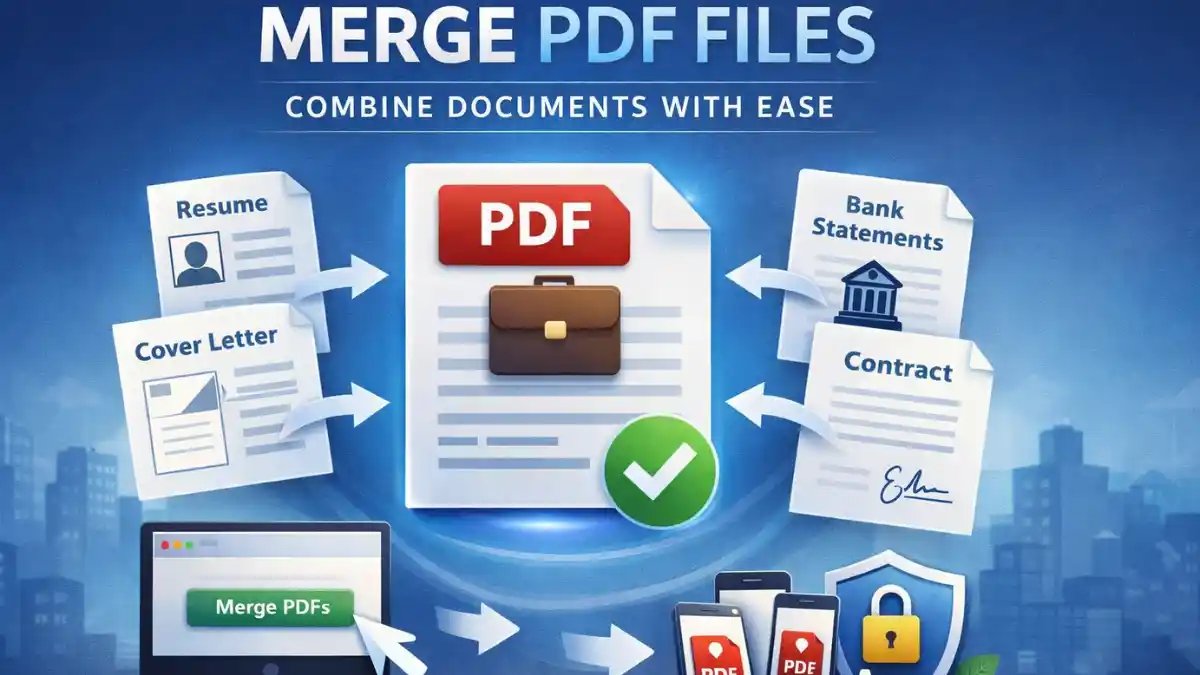
Merging PDFs sounds simple, but in real use, it is usually tied to something important. You may be submitting a job application and need to combine a resume and cover letter PDF. You may be putting together bank statements and KYC documents. You may be sending a contract with annexures, or organizing scanned notes into one clean file.
That is why people do not just want to “combine PDF files.” They want to merge PDF files in the correct order, keep the document readable, avoid quality loss, and end up with one professional file that is easy to share.
This guide is for students, job seekers, office teams, freelancers, accountants, and everyday users who need to merge multiple PDFs into one without confusion. It will walk through what PDF merging actually does, when it makes sense, how to do it step by step, how to avoid common mistakes, and what to look for if you care about privacy and quality. Where relevant, I will also frame things from the ToolsApex point of view, especially for users who want a fast, browser-based workflow without unnecessary friction. ToolsApex describes its PDF tools as browser-based, with no uploads required, which is a meaningful distinction for privacy-conscious users.
Table of Contents
- What merging PDFs actually does
- Common situations where people need to merge PDFs
- What to check before you merge PDF files
- How to merge PDF files step by step
- How to merge PDFs without losing quality
- How to organize files before merging
- How to merge large PDF files more smoothly
- Merge PDF on desktop, phone, and tablet
- Is it safe to merge PDF files online?
- Final thoughts
What merging PDFs actually does
At a practical level, merging PDFs means combining two or more separate PDF documents into one final PDF file. People often use different phrases for the same action: merge PDF, combine PDF, join PDF, or merge multiple PDFs into one. In most everyday workflows, those terms point to the same outcome: one organized file instead of several scattered attachments.
This is useful because PDF itself is built for fixed-layout document exchange. In other words, PDFs are meant to preserve the document’s structure across devices and operating systems. That is one reason the format remains so widely used for resumes, invoices, contracts, statements, reports, and academic material.
Merging is usually better than sending multiple attachments when the reader is expected to review everything as one package. For example, a recruiter should not have to open your resume, cover letter, and certificates separately if they are meant to be reviewed together. The same goes for a bank officer checking statements plus identity proof, or a client reviewing a contract with supporting annexures.
In many situations, merging is also better than sending a ZIP file. ZIP files add an extra extraction step, and some recipients may be hesitant to open them. A merged PDF is easier to preview, easier to print, easier to forward, and usually easier for formal submissions.
Common situations where people need to merge PDFs
One of the most common cases is the job application workflow. People often need to combine resume and cover letter PDF files, and sometimes add certificates or portfolio pages. Sending one polished PDF usually looks cleaner than sending four unrelated attachments.
Another common use case is financial paperwork. Many users need to merge bank statements into one PDF before uploading them for a loan, visa, rental application, or compliance check. If each monthly statement is separate, merging them helps the reviewer move through the file without jumping between downloads.
Business users often merge contracts and annexures, especially when the main agreement has pricing schedules, exhibits, declarations, or signed addenda. Students do something similar with notes, scanned pages, assignments, and project appendices.
Monthly invoices and internal reports are another good example. Teams may need to combine multiple PDF files into one document so that finance, management, or clients can review a full reporting set in the intended sequence.
What to check before you merge PDF files
Before you upload anything, take one minute to prepare the files. That minute often saves much more time later.
- First, put the files in the correct order. This is the biggest practical mistake people make. Even when the merge itself works perfectly, the final document becomes annoying if page 5 appears before page 1, or if the appendix comes before the main document.
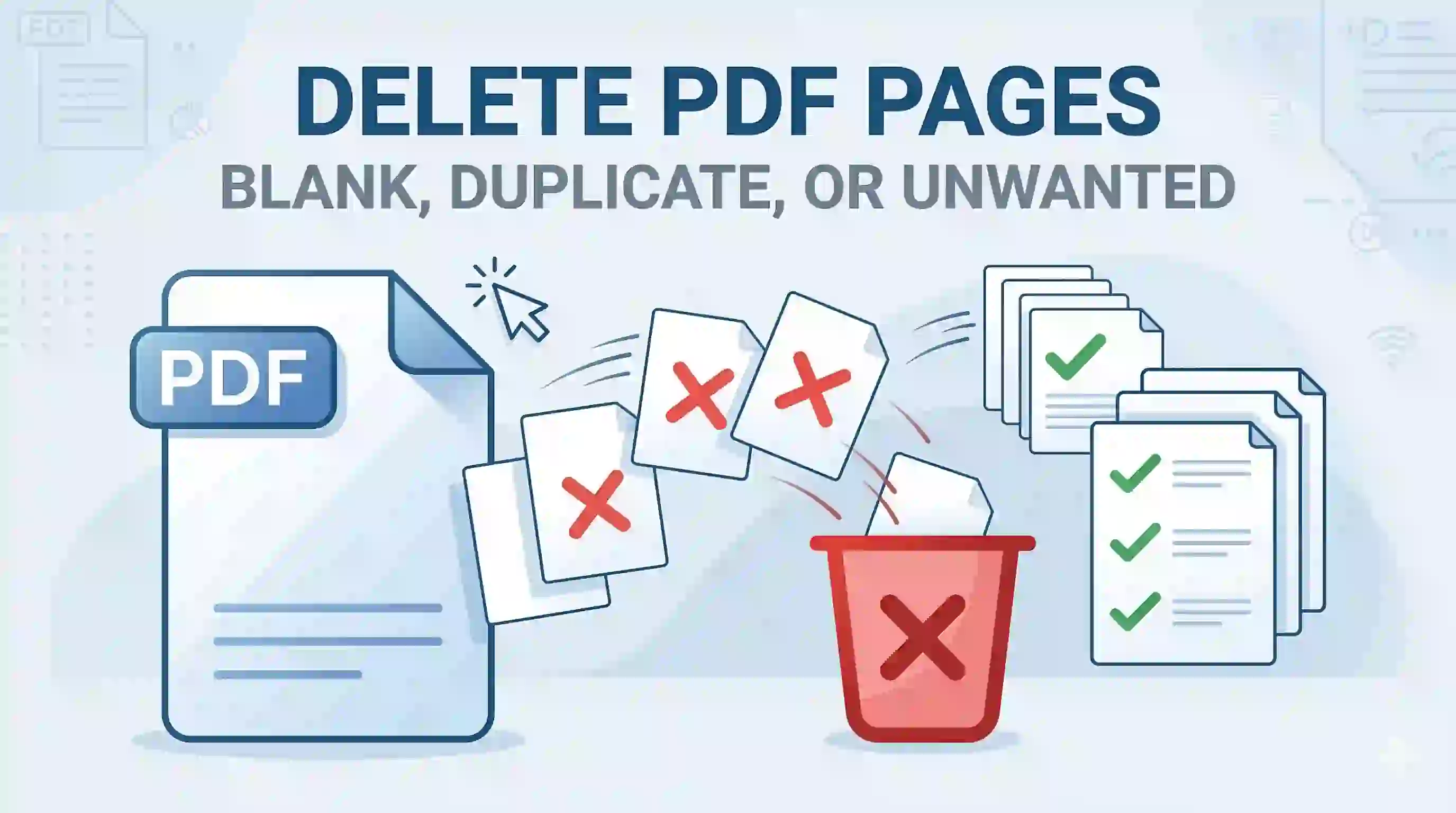
- Second, check for duplicate pages and blank pages. These often appear when you export the same file twice, scan a batch unevenly, or mix draft and final versions of the same document. If you spot extras, removing blank or duplicate pages before merging produces a much cleaner result.
- Third, confirm page orientation. A merged file feels broken when some pages are portrait, some are landscape, and some are upside down. The content may still be technically readable, but the experience becomes clumsy.
- Fourth, decide the final filename before merging. A clear name like March-2026-Bank-Statements.pdf or John-Patel-Resume-Cover-Letter.pdf is much better than final_new_latest_2.pdf.
- Fifth, check whether any file is password-protected. Protected PDFs may need to be unlocked first, depending on the workflow and permissions involved.
How to merge PDF files step by step
The actual workflow is usually straightforward.
- Upload the PDF filesStart by selecting the PDFs you want to combine. Most modern tools support file selection from your device, and many support drag-and-drop as well.
- Add more files if neededIf you forgot one file, add it before merging. It is better to do one clean pass than merge again later and create version confusion.
- Drag and reorder themThis is where the final document takes shape. Move files into the exact sequence you want the recipient to read.
- Merge the filesOnce the order looks correct, run the merge. Good merge tools do not fundamentally rewrite the purpose of your document; they simply combine the component PDFs into one final output.
- Download the final PDFOpen the output and do a quick check. Scroll through the first few pages, middle pages, and last page. Confirm order, readability, and completeness.
That overall workflow is also the reason ToolsApex can be attractive for simple document assembly: the site positions its PDF tools as fast, browser-based, and designed to work without uploads, which reduces friction for users who want a direct merge-PDF-online experience.
How to merge PDFs without losing quality
This is the concern most people have, and it is often misunderstood.
In normal PDF merging, text and image quality usually stay the same because the tool is combining existing PDF content rather than photographing it again or rebuilding every page from scratch. Adobe’s own merge workflow describes the process as retaining the original content, layout, and quality.
So why do people sometimes feel the output is “worse” after they merge PDF files?
Usually, one of three things is happening.
The first is that the original files were already low quality. If one PDF came from a blurry mobile scan, merging will not magically sharpen it.
The second is that the user is confusing file size with visual quality. A smaller exported file is not always worse, and a larger file is not always better. Sometimes the merged PDF simply feels heavier or lighter because of how the source files were made.
The third is that scanned PDFs behave differently from digitally created PDFs. A digitally created PDF usually contains sharp text and vector elements, so it stays crisp when viewed normally. A scanned PDF is often just image-based pages inside a PDF wrapper, so the result depends heavily on scan clarity, contrast, skew, and resolution.
That is why “merge PDF without losing quality” is often less about the merge itself and more about the condition of the source documents before the merge begins.
How to organize files before merging
A better final PDF is usually the result of better structure, not just better software.
For records like invoices, statements, or monthly reports, chronological order works best. Put the oldest first and newest last, or the reverse, depending on how the file will be reviewed. Just stay consistent.
For application or approval workflows, priority-first order is often better. Put the most important document first, followed by supporting materials. For example: resume, cover letter, certificates. Or main form, identity proof, bank statement, annexures.
For formal documentation, a simple structure works well: cover page, main document, appendix. This makes long merged PDFs easier to scan and easier to revisit later.
Naming conventions also help. Keep filenames short, clean, and predictable before merging. A folder full of files named by date or purpose is easier to reorder correctly than a folder full of random names.
How to merge large PDF files more smoothly
Large files are where people start to feel friction, especially in the browser.
One easy improvement is to close heavy browser tabs before merging. If your system is already under memory pressure, even a simple task can feel slower than it should.
Another good habit is to merge in logical sets if needed. For example, if you have 60 separate invoices, it may be easier to merge them month-wise or quarter-wise first, then create a final master file only if necessary.
Consistent filenames help here too, especially when handling many related PDFs. A file set named Invoice-01, Invoice-02, Invoice-03 is much easier to manage than a chaotic mix of downloads.
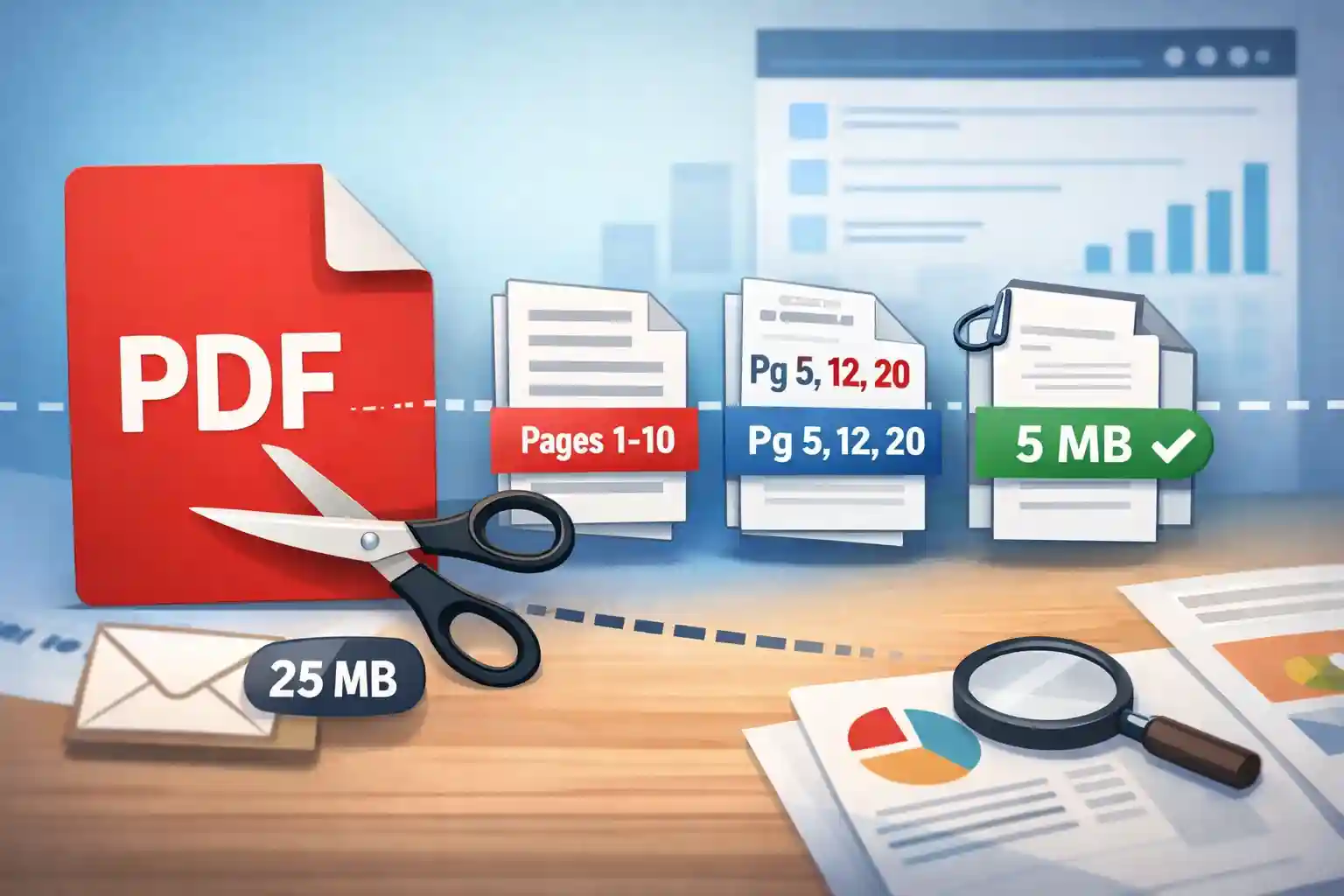
Also check the total size before export. Even if the merge works, a very large final PDF can be inconvenient to email, upload, or open on mobile. If the merged file exceeds your recipient's attachment limit, splitting it by file size is the fastest way to break it into email-safe parts.
Merge PDF on desktop, phone, and tablet
Today, many users expect to merge PDF on mobile just as easily as on desktop, and for simple jobs that is realistic.
On desktop, the browser workflow is usually the smoothest because you can drag, drop, reorder, and review more comfortably on a larger screen.
On phone and tablet, the same task is possible, but there are a few practical differences. Reordering files can feel tighter on a small screen, and switching between folders, downloads, and cloud storage may take longer. For mobile users, simplicity matters more than extra features.
This is where a browser-first tool can be useful. ToolsApex specifically highlights that its PDF tools are usable on mobile devices and are designed as browser-based utilities, which suits users who do not want to install software just to merge a few PDFs while on the go.
Cloud import can also be useful when files are already stored outside the device, but the real question is convenience versus sensitivity. If the documents are routine and your workflow supports it, cloud access can save time. If the files are private or regulated, think more carefully before moving them around.
Is it safe to merge PDF files online?
Safety depends less on the phrase “online” and more on how the tool handles your files.
The first distinction to understand is browser-based processing versus server-upload workflows. In a browser-based setup, files may be handled locally in the user’s browser rather than being sent away for remote processing. In a server-based workflow, files are uploaded to external infrastructure before the output is generated. ToolsApex explicitly presents its PDF tools as browser-based and “no uploads required,” which is a strong trust signal for users who are trying to minimize unnecessary file exposure.
Privacy-conscious users should look for tools that clearly explain how files are processed, whether files are stored, whether uploads are required, and whether there is any retention window. In broader privacy practice, transparency and risk management are core principles, which is why vague or silent handling of sensitive documents should always be treated carefully.
As a rule, do not upload highly sensitive documents to unknown tools that provide no meaningful explanation of their privacy model. That includes passport scans, financial records, signed contracts, medical files, or KYC packs. If a tool is unclear about where files go or what happens after processing, that uncertainty itself is the warning sign.
Final thoughts
If your goal is to merge multiple PDFs into one clean, professional file, the process itself is not difficult. The real difference comes from preparation: correct order, clean source files, sensible naming, and one last check before downloading.
Most quality concerns are not caused by merging at all. They come from weak scans, mixed orientations, duplicate pages, or confusion about file size. Once you understand that, it becomes much easier to combine PDF files with confidence.
From the ToolsApex perspective, the strongest angle is not just “merge PDF online.” It is the combination of convenience, simplicity, and privacy-minded workflow. For users who want to combine resume and cover letter PDF files, merge bank statements into one PDF, or organize contracts and reports without installation or unnecessary uploads, that is a practical and credible value proposition.