How to Split a PDF by Range, Specific Pages, or File Size
A practical guide to splitting PDFs by range, extracting specific pages, or splitting by file size — with step-by-step instructions for email, reports, and secure sharing.
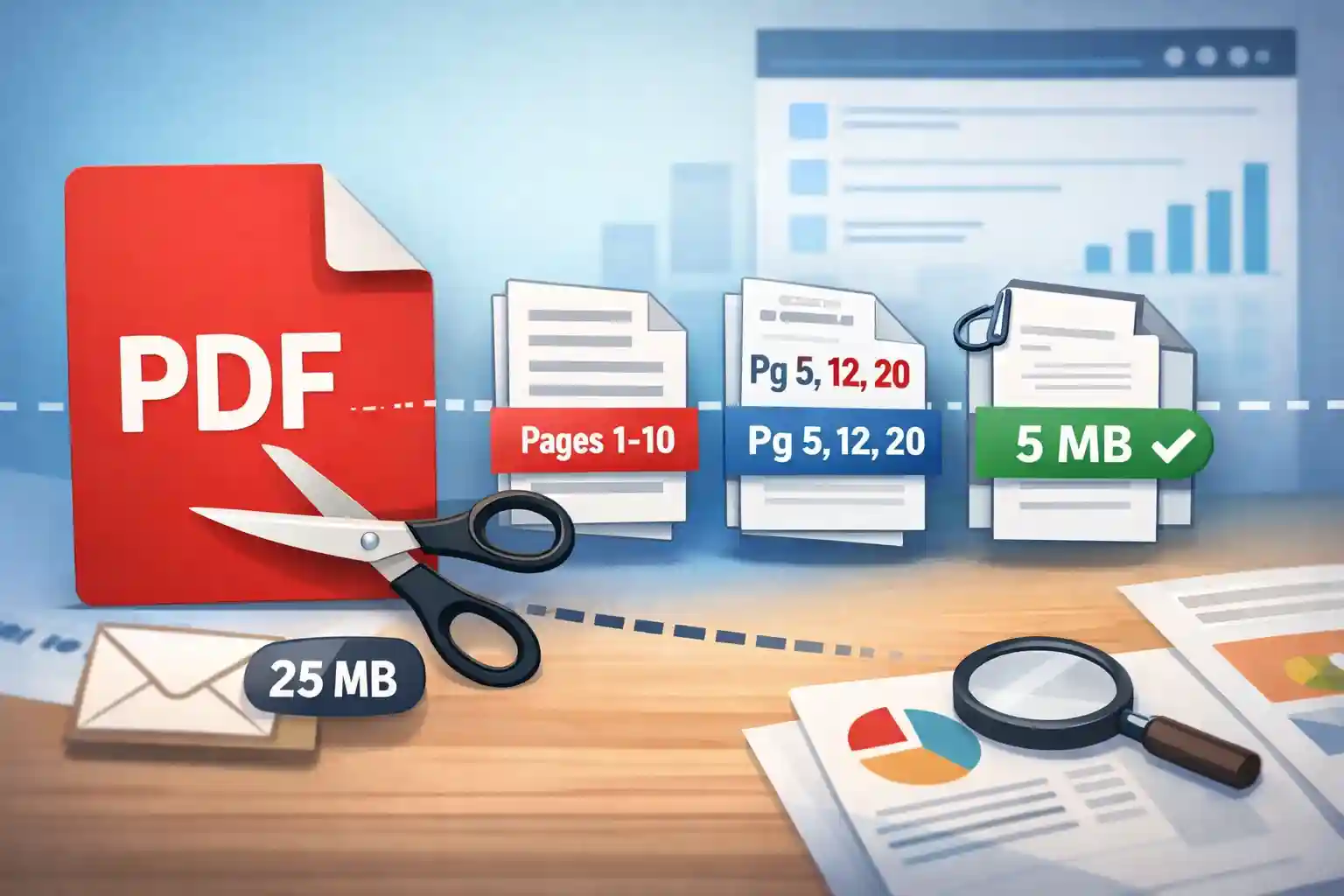
Not every page in a PDF deserves to travel with the rest. Sometimes you need one receipt out of a sixty-page bank statement. Other times you need to break a 40 MB report into pieces small enough for an email. And occasionally you just want to carve a dissertation into chapter-sized files that are easier to share, review, or archive.
Splitting a PDF is one of those deceptively simple tasks that people confront every week — yet frequently handle in clumsy ways, like screenshotting pages or printing to a new PDF. The truth is, every mainstream PDF workflow boils down to three approaches: splitting by page range, extracting specific pages, or splitting by file size. Each serves a distinct purpose, and choosing the right one can save you ten minutes of fiddling and keep your documents intact.
This guide walks through all three methods, explains when each makes the most sense, and shows you how to do it without degrading the quality of your original file.
Table of Contents
- What does it mean to split a PDF?
- When you should split a PDF
- Method 1 — Split a PDF by page range
- Method 2 — Extract specific pages from a PDF
- Method 3 — Split a PDF by file size
- How to choose the right split method
- Step-by-step: how to split a PDF online
- Split PDF examples
- Split PDF without losing quality
- Split PDF on phone, desktop, and browser
- Privacy and security when splitting PDFs
- Final thoughts
What does it mean to split a PDF?
Before we go further, it helps to draw a clear line between terms that sound interchangeable but are not.
Split means dividing one PDF into two or more separate files, each containing a subset of the original pages. When you split a 30-page document at page 15, you end up with two independent files — pages 1–15 in one, pages 16–30 in the other.
Extract is pulling out a selection of individual pages and placing them into a new file. The original remains untouched. Think of it as photocopying a few pages out of a binder and stapling the copies together.
Delete pages is the inverse of extraction. Instead of picking what you want, you remove what you don't want. The distinction matters because the mental model is reversed: delete mode starts from "keep everything" and subtracts, while extract mode starts from "nothing" and adds.
Crop or edit is something else entirely. Cropping changes the visible area of a page — it does not separate pages into different files. Editing modifies content within the page. Neither of these produces a smaller, standalone document.
If your aim is to produce a self-contained PDF from selected pages of a larger document, you want to split or extract — not crop, not edit, and not screenshot.
When you should split a PDF
Splitting is not an exotic operation reserved for IT departments. It comes up more often than most people realize, across personal, academic, and professional settings.
Sending only what matters. A hiring manager does not need your entire portfolio — just the three relevant case studies. A landlord needs the lease agreement, not the fifty-page building code document it was bundled into.
Breaking a long report into sections. Annual reports, research papers, and compliance documents often run well past a hundred pages. Splitting them into chapters or sections makes distribution far more practical and lets reviewers focus on the part that concerns them.
Separating invoices and receipts. Accountants and freelancers routinely receive a single file containing twelve monthly invoices. Splitting them apart makes it possible to attach each one to the correct expense report or client record.
Staying under file-size limits. Gmail caps attachments at 25 MB. Outlook, depending on the version, enforces limits between 20 MB and 35 MB. Many corporate portals and government submission systems are even stricter, with 10 MB or 5 MB thresholds. A large scanned document can easily blow past these limits, and splitting by size is the fastest way to comply.
Organizing chapters, forms, or statements. Textbook PDFs, legal filings, and financial statements are often distributed as monolithic files. Splitting them into manageable pieces makes it easier to annotate, reference, and archive the sections independently.
Method 1 — Split a PDF by page range
Splitting by page range is the most intuitive method. You tell the tool where to cut, and it produces separate files for each range you define.
Best for: Dividing a document into logical sections — chapters of a book, parts of a report, or segments of a manual.
How it works: You specify ranges like 1–10, 11–25, and 26–40. The tool generates three separate PDFs, one for each range. Some tools also support a fixed-interval mode — for example, "every 5 pages" — which automatically produces a set of files without requiring you to calculate the boundaries yourself.
Planning your ranges. Before you start, skim the document's table of contents or bookmark structure. Note the page numbers where each section begins and ends. Planning ahead prevents that frustrating scenario where you split at page 20, only to realize the section actually ended on page 22.
Common mistakes:
- Overlapping ranges (e.g., 1–10 and 10–20) can produce duplicate pages.
- Specifying a range that exceeds the document's page count — for instance, typing 1–100 in a 50-page file — will either produce an error or silently truncate.
- Forgetting to account for cover pages, blank separator pages, or appendix pages that shift the numbering.
Method 2 — Extract specific pages from a PDF
Extraction is for situations where the pages you need are scattered throughout the document rather than grouped in neat blocks.
Best for: Pulling a few non-consecutive pages from a large file — a specific invoice from a batch, the signature page from a contract, or three slides from a hundred-page presentation deck.
How this differs from deleting pages: Extraction is additive. You select the pages you want, and the tool creates a new file containing only those pages. Your original file is never modified. Deletion is subtractive — it removes pages from the file, altering the original (or a copy of it). The choice between the two depends on whether you want to keep more than you discard, or discard more than you keep.
Non-consecutive pages: This is where extraction genuinely shines. Need pages 2, 7, 14, and 31? Specify them individually, and you receive a single compact PDF containing just those four pages, in order. With range-based splitting, you would have to create four separate single-page files and then merge them together — a two-step process that extraction handles in one.
A practical example: You have a 90-page bank statement, but your tax advisor only needs the pages that show interest income — pages 3, 18, 42, and 67. Extraction pulls precisely those pages into a clean, minimal file.
Method 3 — Split a PDF by file size
This method exists for one specific reason: file-size constraints. You do not care about content boundaries; you care about keeping each output file under a certain number of megabytes.
Why this matters: Email providers enforce hard attachment limits. Gmail's ceiling is 25 MB, but after MIME encoding during transmission, the effective limit is closer to 17–18 MB for a single attachment. Outlook desktop defaults to 20 MB, though Microsoft 365 accounts allow up to 35 MB. Government submission portals, insurance claim systems, and university assignment drop boxes often cap files at 10 MB or even 5 MB.
How it works: You set a maximum file size — say, 10 MB. The tool then distributes the pages across as many output files as necessary to keep each one under the threshold. The result is a set of files that are each portal-safe or email-safe.
Best for: Large scanned documents, image-heavy reports, construction drawings, and architectural plans — anything where the file is bloated because of embedded images rather than raw text.
What to expect: Size-based splitting is approximate, not exact. The tool estimates the cost of each page and assigns pages to output files accordingly. Because images, fonts, and metadata contribute to size in unpredictable ways, the output files may land somewhat below your target — rarely above it. This is normal and by design; erring on the side of "slightly under" ensures the files actually pass through size gates.
How to choose the right split method
There is no universal best method. The right choice depends on what you are trying to accomplish.
Need a chapter or a defined section? Use range mode. Specify the starting and ending pages, and you get a clean, logically bounded file.
Need a handful of scattered pages? Use extract mode. Pick individual pages from anywhere in the document, and receive one combined file containing exactly those pages.
Need to meet a file-size constraint? Use size mode. Set the ceiling in megabytes, and the tool handles the distribution automatically.
If you are unsure, start with extract mode. It is the most flexible: you can select consecutive pages (which effectively behaves like range mode) or non-consecutive pages, and it always produces a single output file.
Step-by-step: how to split a PDF online
Here is what the process looks like in practice, using a browser-based tool:
- Upload your PDF.Drag and drop the file or click to browse. The tool reads the file directly in your browser — it is not uploaded to a remote server.
- Choose your split mode.You will typically see three options: Range, Extract, and Size. Each mode presents a different set of controls.
- Configure your selection.In Range mode, type specific page ranges (like 1-10, 11-25) or set a fixed interval (like "every 5 pages"). In Extract mode, click on the page thumbnails you want to include. In Size mode, type the maximum file size in megabytes.
- Split.Click the split button. The tool processes the file and prepares the output.
- Download.If the result is a single file, you download it directly. If the result is multiple files, you receive them as a ZIP archive — one click, all files.
That overall workflow is also the reason ToolsApex's Split PDF tool can be practical: it runs entirely in the browser, supports all three split modes, and produces ZIP output when needed — with no server uploads.
Split PDF examples
Extract one receipt from a bank statement. Your monthly credit card statement is 45 pages. You need page 12, which shows a disputed charge. Switch to extract mode, select page 12, and download a single-page PDF you can forward to your bank.
Break a thesis into chapters. Your 180-page dissertation needs to be submitted as individual chapter files. Use range mode: Chapter 1 is pages 1–28, Chapter 2 is pages 29–56, and so on. Each chapter becomes a self-contained file.
Split a 25 MB PDF for email. You need to email a scanned construction report that clocks in at 32 MB. Set the size mode to 10 MB. The tool splits it into three or four files, each under 10 MB — well within Gmail's attachment limit.
Share only the contract pages someone needs. A 60-page procurement package contains the contract on pages 14–22. Use range mode to extract just those nine pages. The recipient gets exactly what they need, nothing more.
Split PDF without losing quality
A common concern is whether splitting degrades the content. The short answer: it does not.
When a PDF tool extracts pages from a document, it copies the page data — text, vector graphics, embedded fonts, and images — directly into a new file. It does not re-render or re-compress the content. The output is byte-for-byte identical to the corresponding pages in the original. This is how the portable document format was designed to work, as defined in the ISO 32000 specification that governs the standard.
There are, however, two nuances worth understanding.
Scanned documents may remain large. If each page of a scanned document is essentially a high-resolution photograph, extracting five pages still gives you five full-resolution photographs. The file will be smaller than the original in total, but each page retains its full image weight. There is no automatic compression during extraction.
Output size depends on content type, not page count. A ten-page text-only document might be 200 KB. A single page containing a detailed architectural drawing could be 15 MB. When splitting, the output size is determined by what is on the pages, not by how many pages are in the file.
The bottom line is that splitting and extracting are structurally lossless operations. What goes in comes out unchanged. If you want to learn more about how quality is preserved in PDF workflows, see our companion guide on merging PDFs without losing quality.
Split PDF on phone, desktop, and browser
On a phone or tablet, a browser-based tool is usually the most practical option. There is nothing to install, and the interface adapts to smaller screens. Upload the file from your device, split it, and download the result — all within your mobile browser.
On a desktop or laptop, you have the same browser-based option, plus dedicated applications if you prefer offline processing. Browser tools have the advantage of working across operating systems — Windows, macOS, and Linux — without installation or compatibility concerns.
When ZIP output is helpful. If you are splitting a document into many parts (say, a 200-page manual into 20 ten-page sections), downloading each file individually would be tedious. ZIP packaging bundles all the output files into a single download. Unzip on your end, and the files are ready.
Naming your output files. Rename the split files immediately after downloading. "split-part-1.pdf" is meaningless three weeks later. Label them with the section name, date, or recipient — "Chapter-3-Methodology.pdf" is far more useful than "output-003.pdf."
Privacy and security when splitting PDFs
PDFs regularly contain sensitive information — financial records, legal agreements, medical documents, personal identification. How a tool handles that data matters enormously.
Browser-based processing is the safest model. When a tool runs entirely in your browser, the file never leaves your device. It is read, processed, and output locally using your browser's built-in capabilities. No data is transmitted to a server, no copy is stored in the cloud, and no one else has access to the content.
This is fundamentally different from tools that require you to upload the file to a remote server for processing. With server-based tools, your document travels across the internet, sits on someone else's infrastructure, and is subject to that company's data retention and security policies — which you may or may not have read.
Selective sharing reduces exposure risk. Splitting a PDF is itself a privacy measure. Instead of sending an entire contract to a subcontractor who only needs the scope of work section, you extract those specific pages and send only what is necessary. Fewer pages shared means fewer pages exposed.
What to avoid when handling confidential files: Do not use tools that require account creation just to split a file. Be cautious of tools that display ads funded by data harvested from uploaded documents. And if the tool's privacy page says files are "deleted after 24 hours," recognize that your sensitive document still spent 24 hours on a server you do not control.
Final thoughts
Splitting a PDF is a small act that ripples into larger benefits: cleaner communication, faster file transfers, better organization, and reduced privacy exposure. Whether you are a student breaking a textbook into study guides, a professional trimming a report for a client, or someone just trying to get a file under an email limit, knowing the difference between range, extract, and size splitting lets you pick the right approach on the first try.
The best tools make this process effortless — open, configure, split, download — with no quality loss, no uploads to foreign servers, and no unnecessary complexity.